
Fortnite parental controls are one of the most useful features for parents in this game, which can be played by people of all ages without issues. This popular battle royale game has no restrictions when it comes to who can access and play this game, which is why Parental controls allow parents to restrict a number of activities of their kids to make sure that they are not subject to inappropriate content.
However, as a child, you want the complete experience, which is why there are many players looking for a way to turn off parental controls. If you are interested in learning how to turn off parental control on Fortnite. This guide will present you with the steps that you need to stick to when you wish to turn off parental control in Fortnite.
Exploring the Features of Parental Control
The parental control menu of Fortnite may limit the children’s options to some features if parents disable certain ones.
- Filtering reacts to four different options set by the parents:
- Mature language will be filtered and thus completely invisible in the text chat.
- Players who are not in the squad will not have their names revealed.
- Your username will be hidden from non-squad players.
- Players will not be able to speak through the voice chat with their peers.
- The registered email will no longer receive a weekly summary of the child’s playtime.
- Players will not text chat with teammates at all.
All these different restrictions often limit the gaming experience of a player; hence, you can refer to the steps mentioned in the next section.
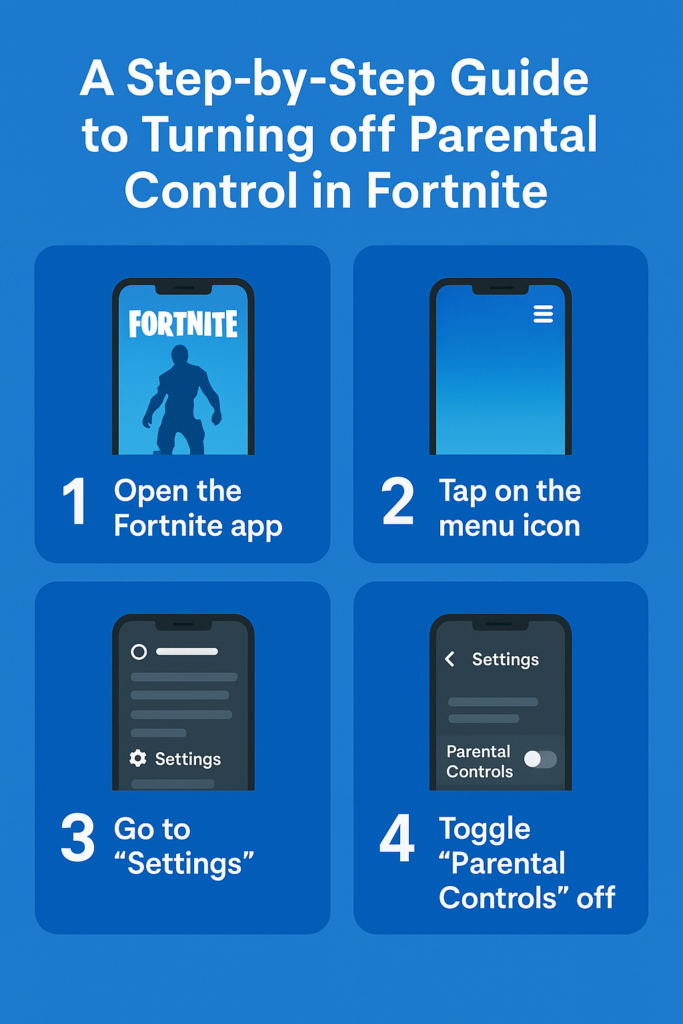
Step-by-Step Instructions for Turning Off Parental Control
You need to adhere to the directions that we are presenting here to easily turn off parental controls without issues.
- Access the Fortnite game and move to the main menu. Click on the three horizontal lines in the top-right corner of your display to show the menu.
- The third option from the bottom should be “Parental Controls”, so just scroll down and find it.
- Next, you will be required to input a six-digit PIN after checking “Parental Controls”. Input the right PIN in order for you to access the settings.
- After you have been given access, you can also change the parental control settings.
- In the parental controls section of the menu, you will see the available options to enable or disable certain features. Pick the “Disable” option if you want to switch off the parental controls and then confirm your selection.
- The parental controls will then be turned off permanently when confirmation is received.
These simple instructions allow you to easily turn off parental control. However, what if you do not have the PIN of your account? You need to use the official Epic Games website to reset the PIN and change the features of your account. Keep in mind that the resetting link will be sent to the email linked to your account, which in the majority of cases is the guardian, which is why to reset the PIN, you need to have access to the account.